
Simplify your accounting with our Xero integration for Seekom
The start of a new financial year is the ideal time to streamline your accounting processes.
If you’re one of our Seekom users who also harnesses Xero accounting software, you can set yourself up for a smooth-sailing tax ride by using our time-saving Xero integration.
This integration can reduce double-handling of invoices at the end of the tax year and simplify accounting reconciliation processes.
Match payments with invoices automatically
One of the beauties of our Xero integration is its ability to take the hassle out of matching payments with invoices.
With the click of a few buttons you can match all reconciled payments in Xero with the relevant invoices in Seekom iBex, giving you a clear idea about which invoices have outstanding fees associated with them.
This will give you full visibility of which invoices have been paid and reconciled in either system – less cross-referencing required.
Invoice and credit note consistency
Want to ensure all your invoices and credit notes display with the same key information in both Seekom and Xero?
When Seekom is synced with Xero you can rapidly create invoices and credit notes and link them to Xero from their Seekom invoice number, pulling across the invoice number, invoice date, due date and booking reference number from Seekom all in one go.
Financial hygiene: confirm your invoices and credit notes are linked
Our Xero integration includes an ‘Invoices report’ to help you ensure all your Seekom invoices have been replicated and linked in Xero. This report highlights the invoices that have not been linked to Xero, giving you a handy to-do list to follow up on.
Xero integration guide for Seekom users
Want to save time with our Xero integration? Find out how by reading our helpful guide on setting up our Xero integration in Seekom.
Recent Blog Post
Smarts to help you operate more effectively and efficiently. From guides of our systems and integrations to tips and tricks you can use every day - we've got you covered.
Sign Up For Updates
Contact Us
PO Box 9300, Marion Square, Wellington 6141
Phone (NZ) : +64 4 974 9588
Phone (UK) : +44 20 3835 5939
Support: support@seekom.com
Websites: webhelp@seekom.com

Copyright 2022 © Seekom Limited (NZ owned)
Elevating Your Accommodation Business’ Website: A Guide to SEO Best Practices for Motels, Hotels, Campgrounds, and B&Bs
In today’s digital age, the success of accommodation businesses hinges significantly on their online presence.
Most travel planning and bookings occur online, making it crucial to stand out in search engine results.
At Seekom, we’ve curated essential search engine optimisation (SEO) best practices to enhance your website’s performance and visibility among prospective guests.
The Foundations of a Winning Accommodation Website
Effective Communication and Strategic Use of Keywords
A non-negotiable for any successful website is clear, understandable language – it’s your digital handshake.
Beyond communicating clearly with the people browsing your website, you also need to make sure your site wins the favour of Google and other search engine algorithms to ensure it appears early in the results when someone is searching for accommodation in your area.
That’s where keywords come in – these are specific terms like “Nelson accommodation”, which potential guests might type into a search engine to find you.
Integrating keywords effectively into your website content is pivotal for improving SEO. This, combined with compelling headlines and subheadings that incorporate these keywords, will encourage visitors to explore your site.
Structured Navigation and Imagery
Your website should serve as an inviting virtual tour of your property.
Utilise ‘H1’, ‘H2’, and ‘H3’ tags for headings on your website to organise your content clearly – H1 is used for main titles, H2 for section headings, and H3 for sub-sections.
This structured use of headings not only aids in streamlined navigation but also improves SEO by helping search engines understand the hierarchy and importance of the information on your pages.
Complement this layout with imagery that showcases your facilities, each accompanied by descriptive alternative text (usually added in the ‘alt text’ field for images in your content management system when you upload them). This alt text is a brief description that not only helps search engines understand the image content but also enhances accessibility for people using screen readers.
Calls to Action and Content Depth
The effectiveness of ‘calls to action’ (CTAs) on your website cannot be overstated. Each page should guide visitors towards interacting with your services, either by making bookings or enquiring further.
Having enough useful content on your pages helps ensure they are useful and have adequate ‘content depth’ for Google and other search engines to rank them highly. Adequate content depth – typically around 800 to 1,000 characters per page – provides search engines with sufficient context to effectively determine the content of your site and display it in the search results for prospective visitors.
The Impact of SEO and User-friendly Content on Visitors and Bookings
By incorporating clear communication and these SEO elements, you can create a website that's easy to find, engages and informs visitors, and reflects the unique qualities of your hospitality brand. In doing so, you will increase your chances of transforming casual browsers into booked guests.
Remember:
- Enhance your SEO: By incorporating targeted keywords and providing valuable, engaging content, you can improve the visibility of your accommodation on search engines, attracting more organic traffic.
- Improve the user experience: Clear, informative content and easy navigation enhance the user experience, reducing bounce rates and encouraging visitors to explore your accommodation website further.
- Drive conversions: Direct CTAs and streamlined booking processes reduce barriers to booking, leading to higher conversion rates.
- Build trust: Providing detailed information about your accommodation, from room types to local attractions, builds trust with potential guests, making them more likely to book.
Applying SEO Strategies: Best Practices and Tips
As we delve into how to optimise various pages of your site, remember that the key to effective SEO and a quality website is not just in the technical application of this advice, but also in maintaining a consistent tone and style that reflects your brand.
Regular updates and a focus on adding value for your visitors are crucial for keeping your content relevant and engaging.
Apply these principles diligently, and you'll see tangible improvements in how your site performs both in search rankings and user engagement.
Homepage: Optimising Your Homepage for Maximum Impact
Your ‘Homepage’ is your digital front door, setting the tone for your visitor’s experience. Here’s how to make it compelling:
- Headline (H1 tag): Start with an upfront headline (using the H1 tag) that encapsulates your essence, like “Welcome to Sunshine Motel: Your Relaxing Retreat in Nelson”. Ensure your headline includes a primary keyword, such as "Comfortable and Affordable Motel in [Location]", to optimise it for search engines.
- Introduction: Craft a brief but vibrant introduction that showcases what makes your accommodation unique. For instance: "Step into the warmth and charm of Sunshine Motel, your go-to haven in Nelson. Offering cosy rooms, top-notch amenities, and a prime location just steps from the sandy shores, we promise an unforgettable stay at unbeatable value."
- Structured sections: Organise your homepage with subheadings (using H2 tags) for sections like 'About Us', 'Our Rooms', and 'Facilities'. For example, under ‘About Us’, highlight your history and commitment: “Family-owned since 1998, Sunshine Motel prides itself on creating a welcoming atmosphere where every guest feels at home. Our dedicated team goes above and beyond to ensure your stay is comfortable and memorable.”
- Content flow: Guide your visitors seamlessly through the page. Start with a welcoming introduction, showcase your amenities and rooms, and lead them towards making a booking.
This method efficiently highlights your accommodation's unique selling points – location, value, and personal touch. By including relevant keywords and crafting an inviting, user-friendly layout, it boosts SEO and engages potential guests. This approach addresses their main concerns: comfort, convenience, and a memorable experience.
Booking Page: Crafting an Effective Booking Page to Convert Visitors
Your ‘Booking page’ is where interest turns into action. To optimise it for higher conversions, consider the following:
- Headline (H1 tag): Use a clear and inviting headline (using the H1 tag), such as “Book Your Stay at Sunshine Motel”.
- Booking instructions: Streamline the booking process with simple, step-by-step instructions. For instance: "Select your dates, pick your preferred room, and complete your booking effortlessly. Enjoy peace of mind with our flexible cancellation policies and ensure the best rates by booking directly with us."
- Important details: Clearly provide information about cancellation policies, payment methods, and other booking-related details. This transparency helps build trust and manage expectations.
- CTA – call to action: Prominently display a ‘Book Now’ button, encouraging immediate booking. For example, use an inviting phrase like “Book Now – Start Your Nelson Getaway Today” to create a sense of excitement and urgency.
This streamlined approach reduces booking obstacles, prompting guests to easily complete reservations. A clear, prominent CTA and detailed information about policies and benefits effectively address common concerns, boosting conversion chances.
Simplifying the booking process and highlighting benefits such as flexible policies and competitive rates enhances the user experience and encourages bookings.
Contact Us: Optimising the Contact Us Page for Enhanced Guest Interaction
Your 'Contact Us page’ is vital for establishing a connection with potential guests.
Here’s how to make it inviting and effective:
- Headline (H1 tag): Start with a headline (using the H1 tag) that’s both inviting and clear, like “Get in Touch with Sunshine Motel”. This directly encourages communication.
- Diverse contact methods: Offer various ways to get in touch, such as phone, email, and an online contact form. For instance: "Got questions? We’re eager to assist! Reach out to us at [Phone Number], drop us an email at [Email Address], or simply fill out our contact form. We're excited about making your Nelson visit exceptional."
- Location map: Embed a Google Map to pinpoint your accommodation's location. This visual aid not only enhances local SEO but also helps travellers easily locate your property and its proximity to major attractions.
- CTA – call to action: Encourage visitors to contact you for any queries or direct bookings. A welcoming and clear CTA can significantly increase direct guest interaction.
Providing various contact methods caters to diverse preferences, simplifying guest communication. Including a Google Map enhances local SEO and assists in location understanding, aiding guest decision-making. This approach transforms the 'Contact Us page’ into an effective tool for engaging guests and boosting bookings.
Facilities: Showcasing Your Facilities to Attract and Engage Guests
Your ‘Facilities page’ is where you highlight what makes your property special.
Here’s how to showcase them effectively:
- Headline (H1 tag): Use an inviting headline (utilising the H1 tag) like “Discover Our Amenities at Sunshine Motel”. This sets the tone for what guests can expect during their stay.
- Vivid descriptions: Provide detailed descriptions of your facilities, emphasising unique features or amenities. For example, you could say: “Immerse yourself in our crystal-clear outdoor pool, stay up to date with free high-speed Wi-Fi, and kickstart your day with a complimentary breakfast. At Sunshine Motel, every detail caters to your comfort.”
- Quality images: Accompany these descriptions with high-quality images. Ensure each image has a descriptive alt tag, improving SEO and making your site more accessible.
Detailed descriptions alongside quality images effectively display your facilities, providing guests with a clear understanding of what’s offered. Emphasising
amenities like free Wi-Fi and breakfast differentiates you from rivals and influences traveller decisions. This method not only makes your ‘facilities page’ more engaging but also raises the potential for converting visits into bookings.
Accommodation Options: Highlighting Your Accommodation Options to Cater to Every Guest
Your ‘Accommodation Options page’ is crucial for showcasing the variety and uniqueness of your offerings. Here’s how to optimise it:
- Headline (H1 tag): Begin with a descriptive headline (using the H1 tag) such as “Choose Your Perfect Room at Sunshine Motel”. This immediately informs visitors about the content of the page.
- Room types and details: Detail each room type, focusing on amenities, pricing, and suitability. For example: “Find your ideal stay, whether you’re traveling solo, as a couple, or with a family. Our King Suite offers luxury and ample space, while our Double Queen Room is perfectly suited for families. Each room is equipped with modern amenities and comfortable bedding, ensuring a memorable stay.”
- CTA – call to action: Incorporate direct links to book specific room types, making the reservation process straightforward and efficient.
Clear, detailed room descriptions help guests quickly identify their ideal choice, increasing booking chances. Using relevant keywords for room types and amenities improves SEO, attracting more organic traffic to the page.
Local Attractions: Promoting Local Attractions to Enhance Guest Experience
Encourage guests to explore the area by highlighting local attractions:
- Headline (H1 tag): Use an informative headline (utilising the H1 tag) such as “Explore Nelson Attractions Near Sunshine Motel”.
- Engaging descriptions: Offer compelling descriptions of nearby attractions, their distance from the motel, and their appeal. For example: "Explore the stunning Abel Tasman National Park right on Nelson’s doorstep, or dive into a myriad of other attractions such as skydiving, white water rafting, and local museums. Our convenient location at Sunshine Motel provides easy access to these and many more spectacular attractions."
- CTA – call to action: Provide links for more information or to book rooms, aligning a stay with the exploration of these attractions.
Featuring local attractions not only improves the guest experience but also enhances local SEO. Using location-based keywords draws in guests interested in nearby attractions, leading to more booking prospects.
At Seekom, we specialise in boosting your online presence through bespoke SEO and optimal web design services tailored specifically for the accommodation and hospitality sector.
Whether you're enhancing an existing website or creating a new one from scratch, our expert team provides comprehensive support at every step.
Ready to elevate your website's performance? Contact us today to learn how our customised web design and management services can revolutionise your digital strategy, turning casual browsers into loyal guests.

Note: Something you may not know, is that we also build websites. Many of our customers have Seekom built, fully managed websites which we maintain, including SEO management. If you’re interested in finding out more about this, get in touch.
Recent Blog Post
Smarts to help you operate more effectively and efficiently. From guides of our systems and integrations to tips and tricks you can use every day - we've got you covered.
Sign Up For Updates
Contact Us
PO Box 9300, Marion Square, Wellington 6141
Phone (NZ) : +64 4 974 9588
Phone (UK) : +44 20 3835 5939
Support: support@seekom.com
Websites: webhelp@seekom.com
Copyright 2022 © Seekom Limited (NZ owned)
Save time and boost security with Seekom’s latest improvements
As part of our constant commitment to improving Seekom’s functionality to save you time and keep your systems and data more secure, we're highlighting three of our latest system enhancements.
Discover how to save time by addressing emails to groups and locating guest details with handy new search fields, plus be aware of new password requirements to keep your data safer than ever.
Send emails to multiple room types with ease
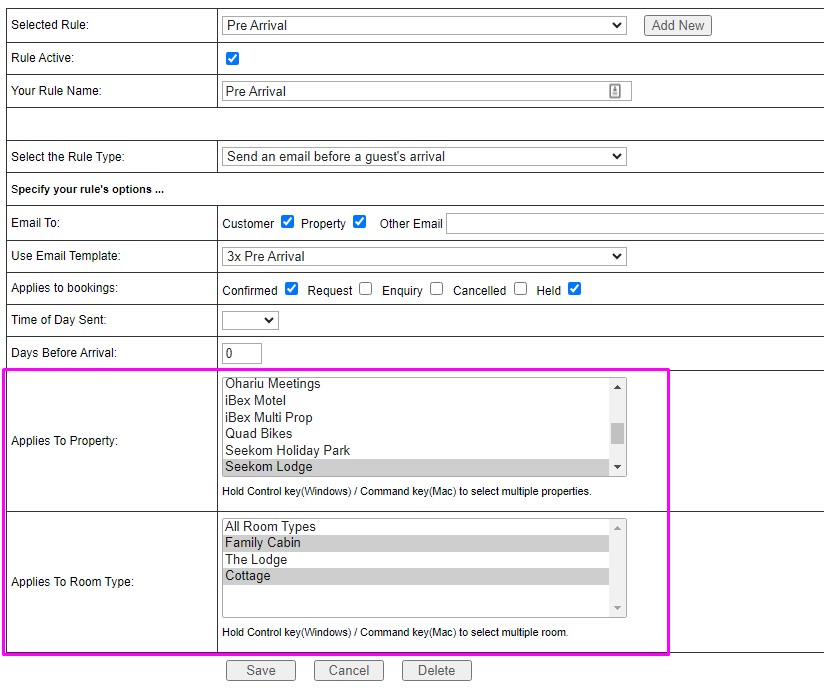
You can now select multiple properties and multiple room types when setting up your email scheduler. The scheduler allows you to create automated email messages that provide important information to guests at different pre-set times before, during or after their stay with you (e.g. a day prior to arrival, the day before check-out and a day after they leave).
Say goodbye to creating separate emails for each different category of rooms and welcome the ease of sending out one batch email to all of them instead. A real time saver.
Search and sort from the Arrivals and Departure screens
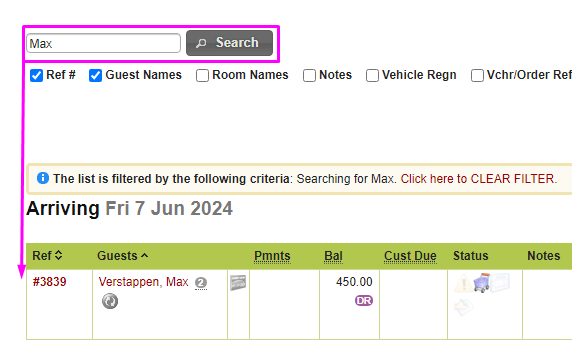
We’ve added a search field and sort function to make it easier to track down guests from your Seekom Arrivals and Departures screens.
If you have lots of different units at your property you can now use the search bar to find your guests easily rather than having to keep scrolling down the screen. Alternatively, you can sort the screen by guest name, unit number, booking reference number or even vehicle registration plate to find them.
Beefed up password strength requirements
Strong passwords are a key part of your business’s online defense strategy in the fight against cybercrime. A best practice is to update your password often and make sure it’s strong enough to resist the nefarious efforts of hackers.
Our new beefed up password requirements require passwords to have at least eight characters and include a minimum of one lowercase letter, one uppercase letter, one number and one symbol. It might seem a bit over the top, but if you’re going to use a password you might as well use one that does the job properly.
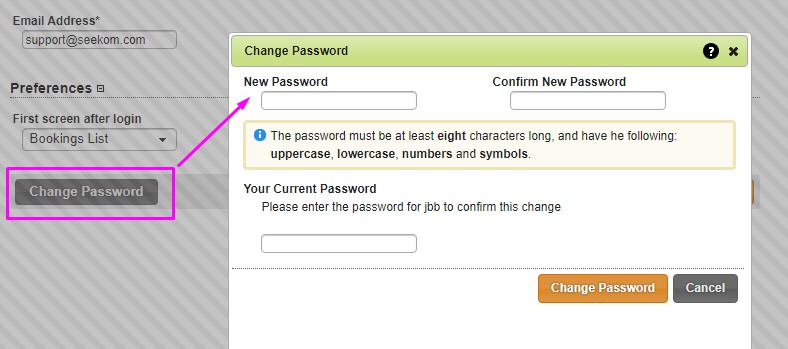
To update your password, select 'My Account' from your Seekom iBex menu. Once there, select the Change Password button, which will open the Change Password pop up window.
In the future, we will be implementing two-factor authentication to apply an extra layer of online security armour. To learn more about keeping safe online read our data security article.
These three savvy Seekom system tweaks are live and ready to save your time and keep you secure online – make the most of them.
Recent Blog Post
Smarts to help you operate more effectively and efficiently. From guides of our systems and integrations to tips and tricks you can use every day - we've got you covered.
Sign Up For Updates
One of our amazing business development managers will be in touch to showcase our product to you and talk you through how we can help grow your business.
Contact Us
PO Box 9300, Marion Square, Wellington 6141
Phone (NZ) : +64 4 974 9588
Phone (UK) : +44 20 3835 5939
Support: support@seekom.com
Websites: webhelp@seekom.com
Copyright 2022 © Seekom Limited (NZ owned)
Join the beta test for our new streamlined booking calendar
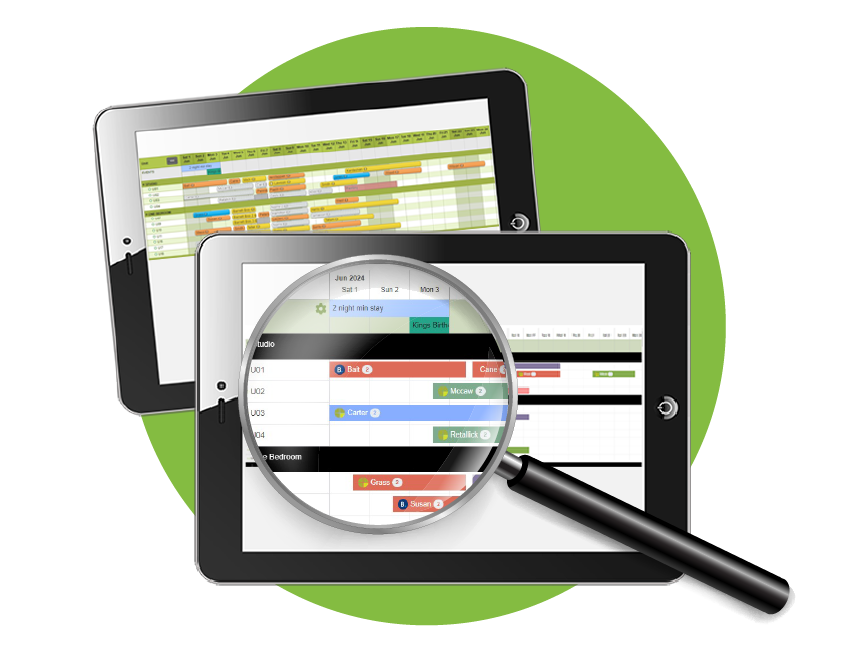
We’re excited to be rolling out a supercharged Seekom back-end booking calendar to make managing bookings easier for you and your staff. Due for release in Q2, the revamped booking calendar features:
- State-of-the-art design to provide a fresh look and feel that makes it easier to use.
- A bigger engine under the calendar’s hood meaning faster loading and less time holding up customers at your front desk while it loads.
- New easy-to-understand icons showing the third-party site where the booking originated from, or whether it was a direct booking.
Sign up to be part of the beta test
Our team has been working on the booking calendar for months and we’re almost ready to unveil it – pending some final testing.
We’re searching for a select group of beta testers who are keen to experience the time-saving and performance benefits of the new booking calendar, while also helping us shape it into the best version of itself with their feedback.
Register your interest in being part of the beta test if you want to enjoy the benefits of the new booking calendar early and play a part in making it as tailored as possible to the needs of accommodation providers, sign up here.
Recent Blog Post
Smarts to help you operate more effectively and efficiently. From guides of our systems and integrations to tips and tricks you can use every day - we've got you covered.
Sign Up For Updates
Contact Us
PO Box 9300, Marion Square, Wellington 6141
Phone (NZ) : +64 4 974 9588
Phone (UK) : +44 20 3835 5939
Support: support@seekom.com
Websites: webhelp@seekom.com
Copyright 2022 © Seekom Limited (NZ owned)
Make your end of financial year easier with these four Seekom reports
Feeling frazzled with end-of-financial-year accounting looming large? Fear not: Seekom is here to save the day with a host of helpful reports designed to make it easy to get those accounting ducks in a row and flying in a tax-compliant direction.
We asked the superheroes in our support team to select the top Seekom reports for accommodation businesses navigating the end of the financial year and planning for the future. Knowledge is power – use it to your advantage!
Payments Received Report
Need to track down a payee’s name or a comment you left on a payment you received to help you reconcile and finalise your end of year accounts?The Payments Received Report makes tracking it down easy by allowing you to search through all your payment records.
A host of filters will save you time by letting you create bespoke reports to pinpoint the information you require. These filters include ‘booking reference’, ‘invoice number’, ‘payment reference’ and even ‘comments’.
Sales Report
Sometimes it can be useful to analyse your sales figures over a particular period so you can see when your business is most profitable, figure out why, and adjust your rates or services accordingly.
We created the Sales Report to give you all your sales data at a glance. It provides an itemised sales list inclusive of accommodation charges and any extra additional services, which you can filter to customise your report and hone in on details.
Unpaid Bookings Report
Keeping track of past bookings that haven’t been paid or invoiced can be a headache. That’s why we’ve created the Unpaid Bookings Report to help you identify and neatly resolve any past bookings, made by anyone, that still haven’t been invoiced or paid for.
Aside from showing uninvoiced and unpaid bookings up until the date of the report being pulled, this report can also be helpful for analysing your booking data. For example, if the number of unpaid bookings at your accommodation is increasing over time, you might want to consider incentivising advance payment by guests.
Debtors’ Report
If you worry you might miss collecting funds you’re owed specifically by corporates or online travel agents (OTAs), the Debtors’ Report is for you.
You’ll be able to see, at a glance, all outstanding balances they owe for past and future bookings, and how long their payments have been overdue. This ensures you can take action sooner rather than later – always a good thing when it comes to chasing up debts.
Don’t forget - Seekom syncs with Xero!
To make it even simpler to manage your accounts Seekom works hand-in-hand with Xero, allowing you to post invoices and credit notes directly to it. Find out more about syncing Seekom with Xero in our help guide.
At Seekom we’re always trying to make your life easier by letting you enjoy more success and less stress. We’ve created these reports to save you time and help you navigate the tax system with confidence – we hope they simplify the challenge of running your business.
Recent Blog Post
Smarts to help you operate more effectively and efficiently. From guides of our systems and integrations to tips and tricks you can use every day - we've got you covered.
Sign Up For Updates
Contact Us
PO Box 9300, Marion Square, Wellington 6141
Phone (NZ) : +64 4 974 9588
Phone (UK) : +44 20 3835 5939
Support: support@seekom.com
Websites: webhelp@seekom.com
Copyright 2022 © Seekom Limited (NZ owned)